
Images as Backgrounds

Make your shapes and sticky notes stand out with images as backgrounds. It’s a unique and creative way to add visual flair to your design. Add interest and texture to any shape with this easy and fun technique! Click the background image selector to choose your background. Select an existing image from your library, or search…
Embed iFrame or URL

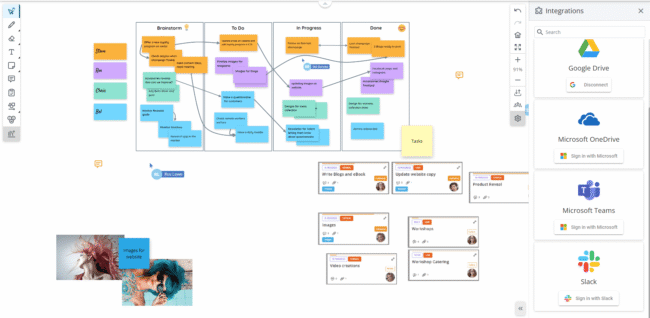
Embed code from your favorite app into a HuddleIQ board and interact with it, including Youtube, Filament, UserVoice, UpTo, Add This, BlackBoard, SoundCloud, Prezi, SlideShare, MapBox, and hundreds more. Alternatively, you can add any website URL and display it on the board for users to click and open in a separate browser tab. Simply go…

What’s New Archive

Nov 15, 2021 Overview: Version 6 keeps adding to the feature list and keeps improving usability. Guests and guest invitations More resources, including AWS icons, Kubernetes icons, Material Design icons, Network Infrastructure icons Align objects Zoom objects to view Slides Presentation Mode Refreshed chat display Conference time Support for 60+ document types More template creation…

Object Defaults

Change the default settings for sticky notes, titles, and shapes. Sticky Note Defaults You may change the following sticky note default settings: The default font The default font size The default font color Whether the font dynamically adjusts to fit all writing in the sticky note Title Defaults You may change the following title object default settings:…

Task List

The task list displays all the assigned tasks where you are either responsible or a collaborator and is accessible from either the board or dashboard. Accessible from the top bar on the right side or the dashboard. Note: The counter in the task list icon displays how many tasks are currently open. By default, both “Open” and “To…

Cards

Cards are a project management tool that allows us to organize content for tasks, assignments, or a repository of information and enhance collaboration while keeping track of timelines. Optionally: Create a task Add steps Add comments Add attachments Add labels Note: Appropriate notifications and entries into the task list will be added on changes to the card. Create a Card…

Diagramming use case 6.0

Board Overview: A Quick Tutorial – Video

A summary of the board’s features and functionalities. 00:08 Introduction00:21 Select a Template00:55 The Top Bar01:08 Profile Icons01:53 The Left-Side Toolbar02:03 Select and Edit Modes02:36 Title Object02:44 Sticky Notes 02:57 Object Toolbar Functions 05:29 Connecting Lines 06:10 Comments 06:38 Cards07:24 Notifications07:31 Task List07:43 Shapes07:53 Lines & Arrows08:12 Containers08:45 Resources09:12 Library09:35 Documents10:02 Pen and Highlighter10:16 Select…

Dashboard Basics: An Introductory Guide – Video

A detailed summary of all the dashboard areas, including creating projects, boards, and invitations. 00:09 Introduction 00:49 My Boards 01:34 Board Details 02:11 Administrators 02:20 Administration – Organization Profile 02:40 Administration – Members 03:48 Administration – Subscription 04:12 Creating a Project 05:52 Creating a Board with Invites 07:33 Notifications 08:50 Task List 09:12 Help 09:28…

Attendee’s List

See who’s on the board in one convenient list, along with seeing their board role, webcam, and microphone status, along with various management functions. Simply click the attendee’s list icon found on the right-side toolbar. Bring all to me, for those permitted, such as board hosts and facilitators, brings everyone on the board to their…